Set up Outlook on your computer
After you’ve downloaded Outlook from Office 365, you can add your Brock email account.
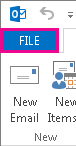
1. In Outlook, choose the File tab.
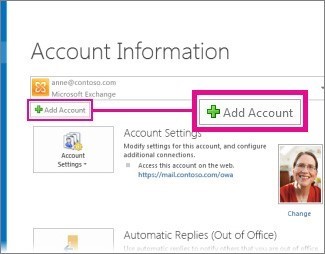
2. Under Account Information, choose Add Account.
3. On the Auto Account Setup page, enter your name, Brock email address and password, and then choose Next.
4. Choose Finish.
1. Open the Outlook App from Applications Folder.

2. Enter in your FULL Brock email, then click Continue.
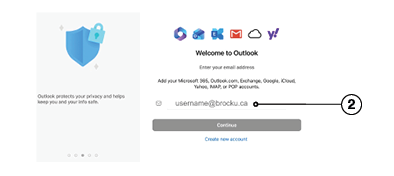
3. Enter in your FULL Brock email and password, then click Sign in.
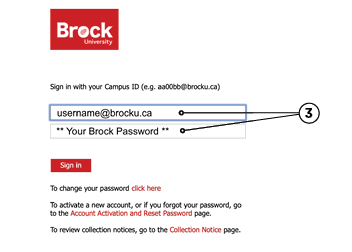
4. Complete Authentication using your Microsoft Authenticator App on your mobile device (if needed).
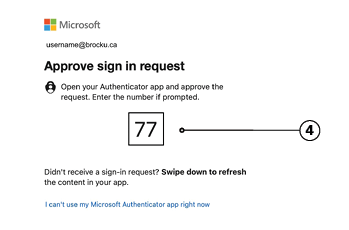
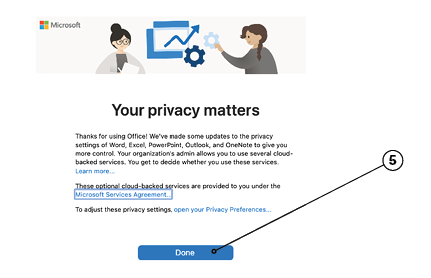
5. Click Done.
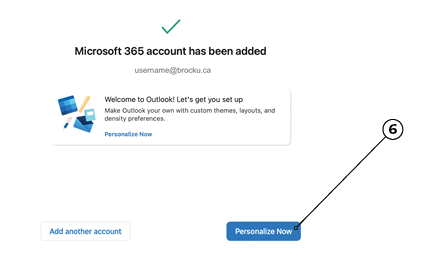
6. Click Personalize Now.
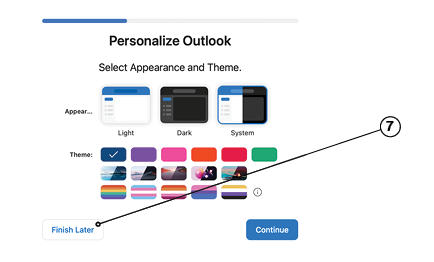
7. Click Finish Later.
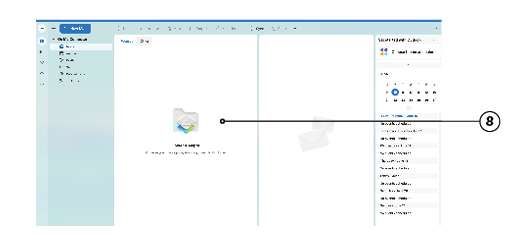
8. Setup complete. Your email should begin downloading to your inbox.
Set up Outlook on your phone
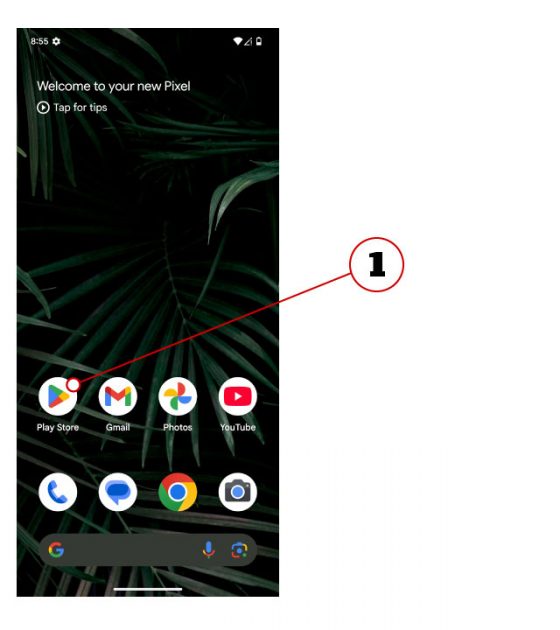
1. Go to the Google Play Store.
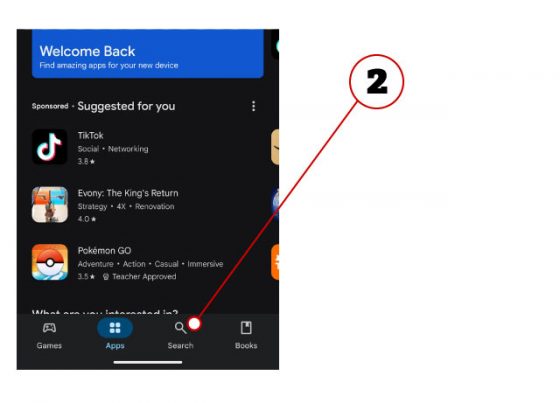
2. Tap Search.
3. Search for Microsoft Outlook.
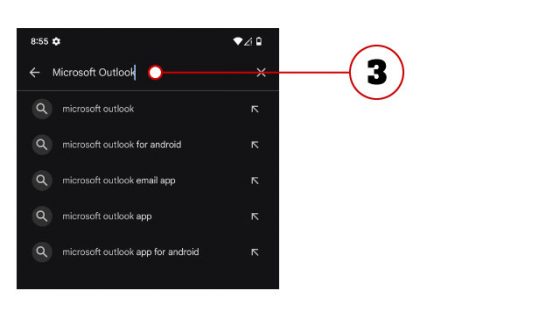
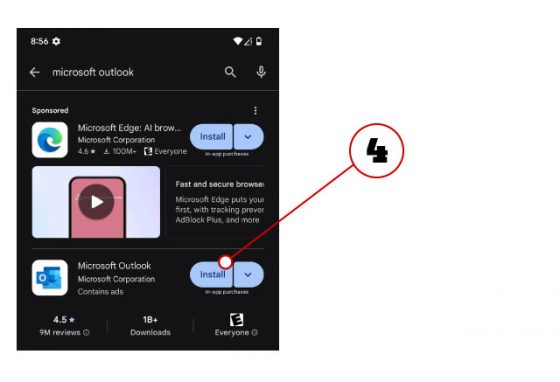
4. Tap Install.
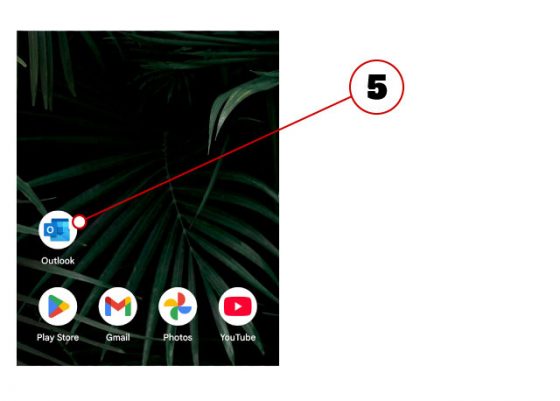
5. Once it has finished installing, tap Outlook to open the app.
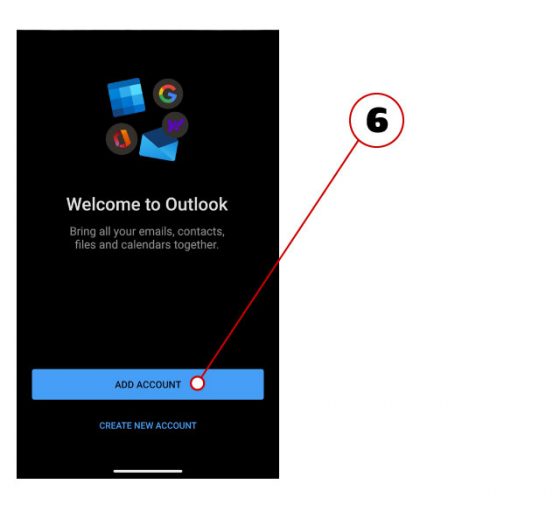
6. Tap Add Account.
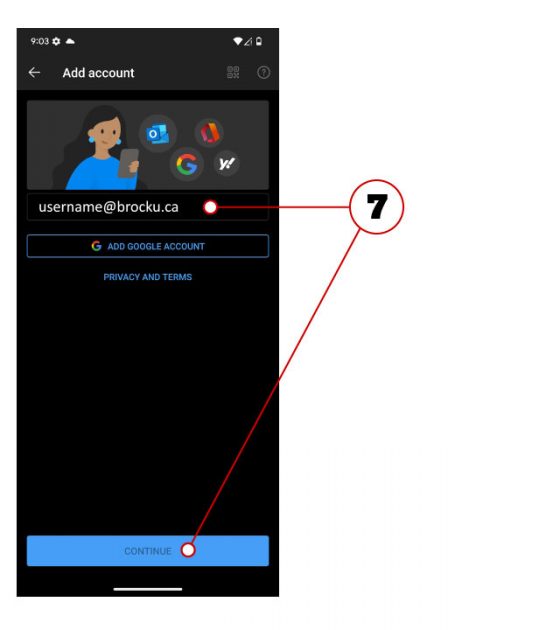
7. Enter the complete Brock email address provided to you, then tap Continue.
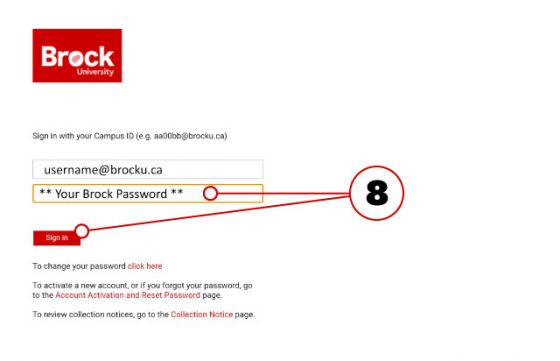
8. Enter the password associated with the account, then tap Sign In.
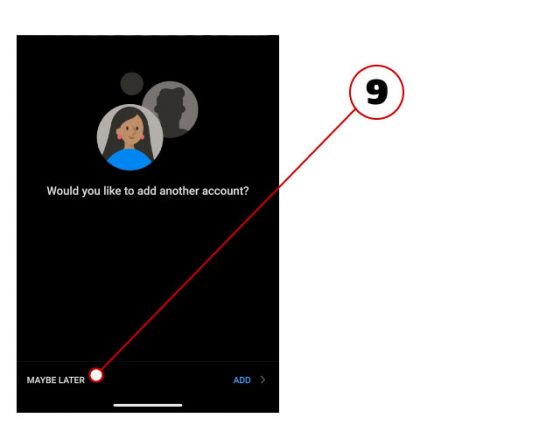
9. Select Maybe Later.
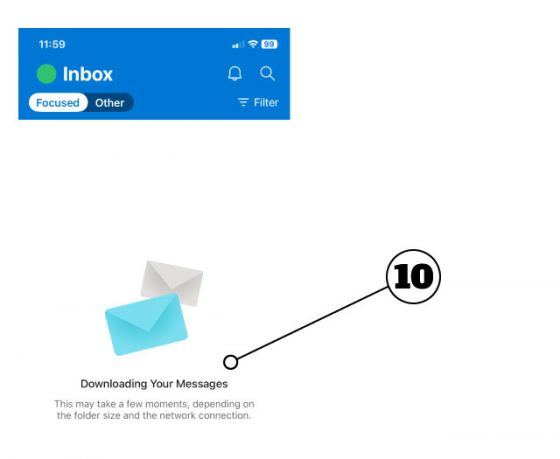
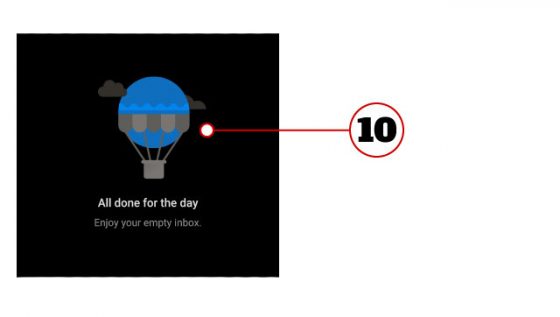
10. Setup complete! Your emails will begin to download from your mailbox to your device.
1. Go to the App Store.
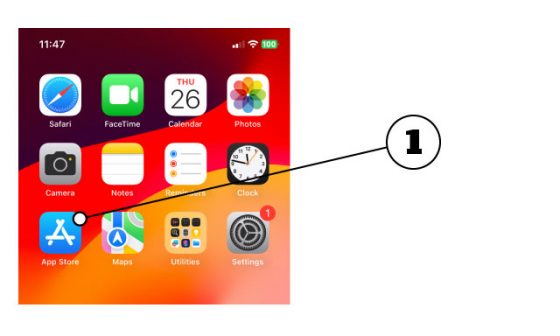
2. Tap Search.

3. Search for Microsoft Outlook.
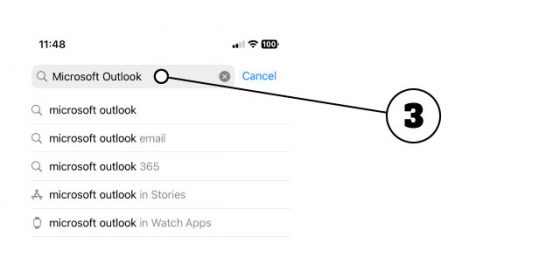
4. Tap Get (or the Cloud Icon if you have previously downloaded it). Outlook is a free app. It should begin downloading automatically, though it might prompt you for your Apple ID password.

5. Once it has finished downloading, tap Outlook to open the app.
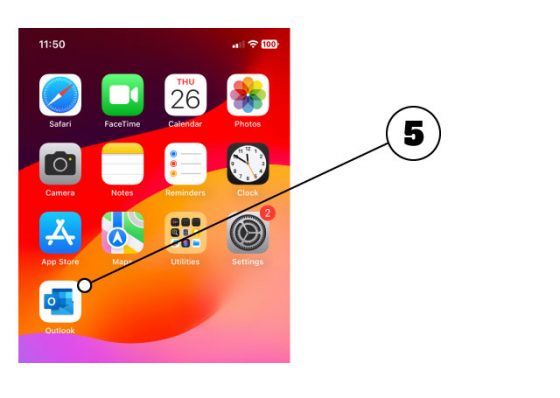
6. Tap Add Account.
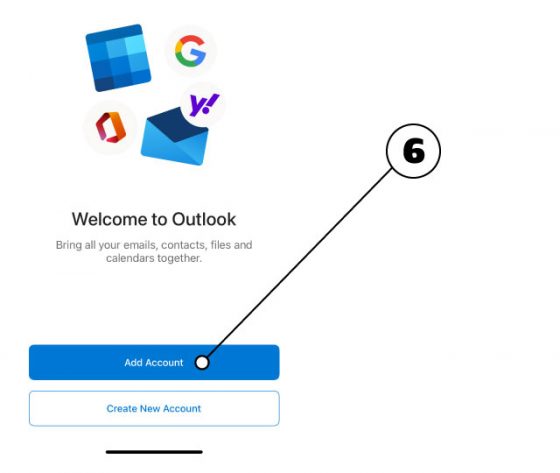
7. Enter the complete Brock email address provided to you and then tap Add Account.
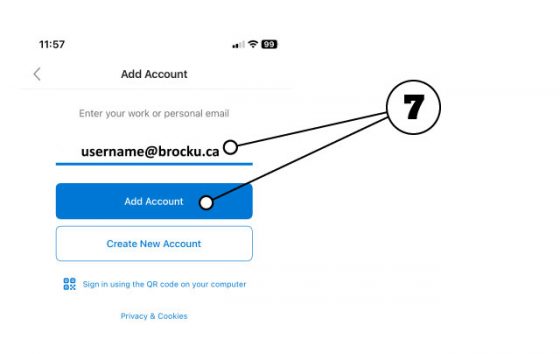
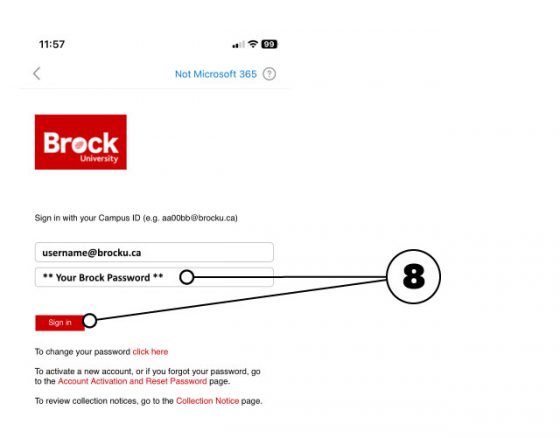
8. Enter the password associated with the account, then tap Sign In.
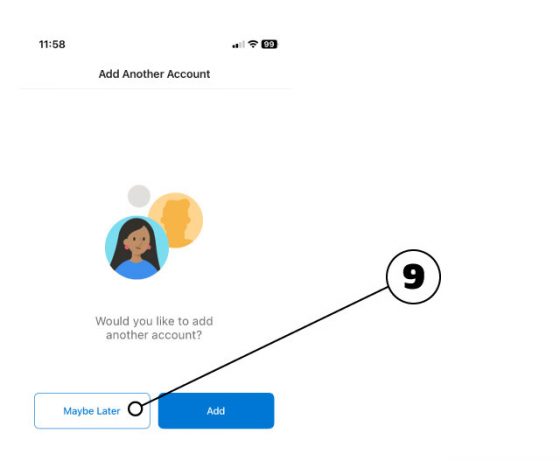
9. Select Maybe Later.
10. Setup complete! Your emails will begin to download from your mailbox to your device.